Components
Search
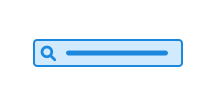
Search allows users to quickly find relevant content on a website or in an application. The component consists of a search field, with or without a search button.
Unable to parse html
const PreviewEn = () => {
  return (
    <Search>
      <Search.Input type='text' aria-label='Søk' />
      <Search.Clear />
      <Button>Search</Button>
    </Search>
  );
};

render(<PreviewEn />)
Usage
Use the class name ds-search on a <ds-suggestion> around <input>.
If you want a clear button, add a <button type="reset"> after the <input>. It is automatically shown and hidden based on the input's value.
You can change the variant on the button to adjust its appearance.
The magnifying icon is shown when input has type="search", and hidden when input has type="text".
CSS variables and data attributes
Sizes are controlled with data-size and colors with data-color. The component will inherit from the closest parent where these are set.
| Name | Value |
|---|---|
| --dsc-button-size | var(--dsc-suggestion-clear-size) |
| --dsc-search-clear-icon-url | var(--dsc-suggestion-clear-icon-url) |
| --dsc-search-clear-padding | var(--dsc-suggestion-clear-padding) |
| --dsc-search-clear-size | var(--dsc-suggestion-clear-size) |
| --dsc-search-magnifying-icon-size | var(--dsc-suggestion-search-icon-size) |
| --dsc-search-magnifying-icon-url | var(--dsc-suggestion-search-icon-url) |
| --dsc-search-padding-inline | var(--dsc-suggestion-clear-gap) |
| --dsc-suggestion-border-color | var(--ds-color-neutral-border-subtle) |
| --dsc-suggestion-border-style | solid |
| --dsc-suggestion-border-width | var(--ds-border-width-default) |
| --dsc-suggestion-chip-background | var(--ds-color-base-default) |
| --dsc-suggestion-chip-background--hover | var(--ds-color-base-hover) |
| --dsc-suggestion-chip-border-color | transparent |
| --dsc-suggestion-chip-border-radius | var(--ds-border-radius-full) |
| --dsc-suggestion-chip-border-style | solid |
| --dsc-suggestion-chip-border-width | var(--ds-border-width-default) |
| --dsc-suggestion-chip-color | var(--ds-color-base-contrast-default) |
| --dsc-suggestion-chip-font-size | var(--ds-body-sm-font-size) |
| --dsc-suggestion-chip-gap | var(--ds-size-1) |
| --dsc-suggestion-chip-height | var(--ds-size-8) |
| --dsc-suggestion-chip-icon-size | var(--ds-icon-size) |
| --dsc-suggestion-chip-icon-url | url("data:image/svg+xml;charset=utf-8,%3Csvg%20xmlns%3D%22http%3A%2F%2Fwww.w3.org%2F2000%2Fsvg%22%20width%3D%221em%22%20height%3D%221em%22%20fill%3D%22none%22%20viewBox%3D%220%200%2024%2024%22%3E%3Cpath%20fill%3D%22currentColor%22%20d%3D%22M6.53%205.47a.75.75%200%200%200-1.06%201.06L10.94%2012l-5.47%205.47a.75.75%200%201%200%201.06%201.06L12%2013.06l5.47%205.47a.75.75%200%201%200%201.06-1.06L13.06%2012l5.47-5.47a.75.75%200%200%200-1.06-1.06L12%2010.94z%22%2F%3E%3C%2Fsvg%3E") |
| --dsc-suggestion-chip-input-size | var(--ds-size-5) |
| --dsc-suggestion-chip-padding | 0 var(--ds-size-3) |
| --dsc-suggestion-chip-spacing | calc(.5 * (var(--dsc-suggestion-chip-height) - var(--dsc-suggestion-chip-input-size))) |
| --dsc-suggestion-clear-background--active | var(--ds-color-surface-active) |
| --dsc-suggestion-clear-background--hover | var(--ds-color-surface-hover) |
| --dsc-suggestion-clear-border-radius | var(--ds-border-radius-md) |
| --dsc-suggestion-clear-gap | var(--ds-size-2) |
| --dsc-suggestion-clear-icon-url | url("data:image/svg+xml;charset=utf-8,%3Csvg%20xmlns%3D%22http%3A%2F%2Fwww.w3.org%2F2000%2Fsvg%22%20width%3D%2224%22%20height%3D%2224%22%3E%3Cpath%20fill%3D%22currentColor%22%20d%3D%22M6.53%205.47a.75.75%200%200%200-1.06%201.06L10.94%2012l-5.47%205.47a.75.75%200%201%200%201.06%201.06L12%2013.06l5.47%205.47a.75.75%200%201%200%201.06-1.06L13.06%2012l5.47-5.47a.75.75%200%200%200-1.06-1.06L12%2010.94z%22%2F%3E%3C%2Fsvg%3E") |
| --dsc-suggestion-clear-padding | var(--ds-size-1) |
| --dsc-suggestion-clear-size | var(--ds-size-9) |
| --dsc-suggestion-create-icon-url | url("data:image/svg+xml;charset=utf-8,%3Csvg%20xmlns%3D%22http%3A%2F%2Fwww.w3.org%2F2000%2Fsvg%22%20width%3D%2224%22%20height%3D%2224%22%20viewBox%3D%220%200%2024%2024%22%3E%3Cpath%20d%3D%22M12.75%205.5a.75.75%200%200%200-1.5%200v5.75H5.5a.75.75%200%200%200%200%201.5h5.75v5.75a.75.75%200%200%200%201.5%200v-5.75h5.75a.75.75%200%200%200%200-1.5h-5.75z%22%2F%3E%3C%2Fsvg%3E") |
| --dsc-suggestion-create-text | 'Legg til "{value}"' |
| --dsc-suggestion-empty-text | "Tomt" |
| --dsc-suggestion-list-background | var(--ds-color-neutral-surface-default) |
| --dsc-suggestion-list-border-radius | var(--ds-border-radius-md) |
| --dsc-suggestion-list-box-shadow | var(--ds-shadow-md) |
| --dsc-suggestion-list-color | var(--ds-color-text-default) |
| --dsc-suggestion-list-gap | var(--ds-size-1) |
| --dsc-suggestion-list-offset | var(--ds-size-1) |
| --dsc-suggestion-list-padding | var(--ds-size-3) var(--ds-size-2) |
| --dsc-suggestion-list-placement | bottom |
| --dsc-suggestion-option-background--hover | var(--ds-color-surface-hover) |
| --dsc-suggestion-option-background--selected | var(--ds-color-surface-active) |
| --dsc-suggestion-option-border-radius | var(--ds-border-radius-md) |
| --dsc-suggestion-option-checkmark-border | max(2px, .125rem) |
| --dsc-suggestion-option-checkmark-border-color | var(--ds-color-neutral-border-default) |
| --dsc-suggestion-option-checkmark-size | var(--ds-size-6) |
| --dsc-suggestion-option-checkmark-url | url("data:image/svg+xml;charset=utf-8,%3Csvg%20xmlns%3D%22http%3A%2F%2Fwww.w3.org%2F2000%2Fsvg%22%20width%3D%221em%22%20height%3D%221em%22%20fill%3D%22none%22%20viewBox%3D%220%200%2024%2024%22%3E%3Cpath%20fill%3D%22currentColor%22%20fill-rule%3D%22evenodd%22%20d%3D%22M18.998%206.94a.75.75%200%200%201%20.063%201.058l-8%209a.75.75%200%200%201-1.091.032l-5-5a.75.75%200%201%201%201.06-1.06l4.438%204.437%207.471-8.405A.75.75%200%200%201%2019%206.939%22%20clip-rule%3D%22evenodd%22%2F%3E%3C%2Fsvg%3E") |
| --dsc-suggestion-option-gap | var(--ds-size-2) |
| --dsc-suggestion-option-padding | var(--ds-size-3) |
| --dsc-suggestion-search-icon-size | var(--ds-icon-size) |
| --dsc-suggestion-search-icon-spacing | var(--ds-size-3) |
| --dsc-suggestion-search-icon-url | url("data:image/svg+xml;charset=utf-8,%3Csvg%20xmlns%3D%22http%3A%2F%2Fwww.w3.org%2F2000%2Fsvg%22%20width%3D%2224%22%20height%3D%2224%22%3E%3Cpath%20d%3D%22M10.5%203.25a7.25%207.25%200%201%200%204.57%2012.88l5.41%205.41a.75.75%200%201%200%201.06-1.06l-5.41-5.41A7.25%207.25%200%200%200%2010.5%203.25M4.75%2010.5a5.75%205.75%200%201%201%2011.5%200%205.75%205.75%200%200%201-11.5%200%22%2F%3E%3C%2Fsvg%3E") |
| --dsc-suggestion-sr-added | "La til" |
| --dsc-suggestion-sr-clear | "Fjern tekst" |
| --dsc-suggestion-sr-empty | "Ingen valgte" |
| --dsc-suggestion-sr-found | "Naviger til venstre for å finne %d valgte" |
| --dsc-suggestion-sr-invalid | "Ugyldig valg" |
| --dsc-suggestion-sr-items | "Valgte" |
| --dsc-suggestion-sr-of | "av" |
| --dsc-suggestion-sr-plural | "%d forslag" |
| --dsc-suggestion-sr-remove | "Trykk for å fjerne" |
| --dsc-suggestion-sr-removed | "Fjernet" |
| --dsc-suggestion-sr-singular | "%d forslag" |
| --dsc-suggestion-sr-toggle | "Forslag" |
| --dsc-suggestion-toggle-icon-url | url("data:image/svg+xml;charset=utf-8,%3Csvg%20xmlns%3D%22http%3A%2F%2Fwww.w3.org%2F2000%2Fsvg%22%20viewBox%3D%220%200%2024%2024%22%3E%3Cpath%20d%3D%22M5.97%209.47a.75.75%200%200%201%201.06%200L12%2014.44l4.97-4.97a.75.75%200%201%201%201.06%201.06l-5.5%205.5a.75.75%200%200%201-1.06%200l-5.5-5.5a.75.75%200%200%201%200-1.06%22%2F%3E%3C%2Fsvg%3E") |
| Name | Value |
|---|---|
| data-activedescendant | |
| data-creatable | |
| data-empty | |
| data-multiple | |
| data-overscroll | contain |
Examples
With label
If you want a label on the search field, add a label that you connect with Search.Input. In the example, we have used field to get a connection between label and Search.Input.
Unable to parse html
const WithLabelEn = () => {
  return (
    <Field>
      <Label>Search for cats</Label>
      <Search>
        <Search.Input type='text' name='cat-search' />
        <Search.Clear />
        <Button>Search</Button>
      </Search>
    </Field>
  );
};

render(<WithLabelEn />)
<form>
Unable to parse html
const Form = () => {
  const [value, setValue] = useState<string>();
  const [submittedValue, setSubmittedValue] = useState<string>();

  return (
    <>
      <form
        onSubmit={(e) => {
          // Prevent navigation from Storybook
          e.preventDefault();
          setSubmittedValue(value);
        }}
      >
        <Search>
          <Search.Input
            type='text'
            aria-label='Søk'
            value={value}
            onChange={(e) => setValue(e.target.value)}
          />
          <Search.Clear />
          <Search.Button />
        </Search>
      </form>

      <Paragraph data-size='md' style={{ marginTop: 'var(--ds-size-2)' }}>
        Submitted value: {submittedValue}
      </Paragraph>
    </>
  );
};

render(<Form />)
React
SearchButton
- variant
- Description
Specify which variant to use
- Type
"primary" | "secondary" | "tertiary"- Default
'primary'
- icon
- Description
Toggle icon only styling, pass icon as children When combined with loading, the loading-icon will be shown instead of the icon.
- Type
boolean- Default
false
- loading
- Description
Toggle loading state. Pass an element if you want to display a custom loader.
- Type
ReactNode- Default
false
- asChild
- Description
Change the default rendered element for the one passed as a child, merging their props and behavior.
- Type
boolean- Default
false
- type
- Description
Specify the type of button. Unset when `asChild` is true
- Type
"button" | "submit" | "reset"- Default
'button'
| Name | Type | Default | Description |
|---|---|---|---|
| variant | "primary" | "secondary" | "tertiary" | 'primary' | Specify which variant to use |
| icon | boolean | false | Toggle icon only styling, pass icon as children When combined with loading, the loading-icon will be shown instead of the icon. |
| loading | ReactNode | false | Toggle loading state. Pass an element if you want to display a custom loader. |
| asChild | boolean | false | Change the default rendered element for the one passed as a child, merging their props and behavior. |
| type | "button" | "submit" | "reset" | 'button' | Specify the type of button. Unset when `asChild` is true |
SearchClear
- aria-label
- Description
Aria label for the clear button @deprecated Please use `--dsc-suggestion-sr-clear` or `data-sr-clear` on Suggestion to set label.
- Type
string
| Name | Type | Default | Description |
|---|---|---|---|
| aria-label | string | - | Aria label for the clear button @deprecated Please use `--dsc-suggestion-sr-clear` or `data-sr-clear` on Suggestion to set label. |
SearchInput
- type
- Description
Type of input, affects if magnifying glass is shown or not. Use 'text' to hide magnifying glass.
- Type
"text" | "search"- Default
search
| Name | Type | Default | Description |
|---|---|---|---|
| type | "text" | "search" | search | Type of input, affects if magnifying glass is shown or not. Use 'text' to hide magnifying glass. |