Components
Field
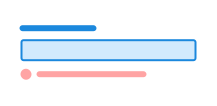
Field is a helper component to automatically associate a field with label, description, validation message and character count.
Unable to parse html
const PreviewEn = () => {
  return (
    <Field>
      <Label>Last name</Label>
      <Field.Description>Last name cannot contain spaces</Field.Description>
      <Input defaultValue='Smith Washington' />
      <ValidationMessage>
        You cannot have spaces in your last name
      </ValidationMessage>
    </Field>
  );
};

render(<PreviewEn />)
Usage
Field groups a label, an optional description, a form element (such as input, textarea, or select), and a validation message.
Add the class name ds-field to the <ds-field> element. <ds-field> automatically adds accessibility attributes and support for optional character count.
<ds-field> also links the validation message across fields if it is placed inside a fieldset.
Field or fieldset?
Field is used for individual form elements, while fieldset is used to group multiple fields together. A good rule of thumb is that a fieldset is a set of fields.
Note: The React component textfield already has field built-in and should therefore not be placed inside a field.
Examples
Prefix/Suffix
Prefixes and suffixes are useful for showing units, currency or other types of information relevant to the field. You should not use these on their own, as screen readers do not announce them.
Unable to parse html
const AffixEn = () => (
  <Field>
    <Label>How many pounds does it cost per month?</Label>
    <Field.Affixes>
      <Field.Affix>GBP</Field.Affix>
      <Input />
      <Field.Affix>per month</Field.Affix>
    </Field.Affixes>
  </Field>
);

render(<AffixEn />)
Character count
Add a <p> with the attribute data-field="counter" inside the ds-field to get a counter on input and textarea.
Unable to parse html
const CounterEn = () => (
  <Field>
    <Label>Add a description</Label>
    <Textarea rows={2} />
    <Field.Counter limit={10} />
  </Field>
);

render(<CounterEn />)
You can control the text in the counter using the following attributes:
| attribute | type | default | required |
|---|---|---|---|
| data-limit | number | undefined | true |
| data-over | string | %d tegn for mye | false |
| data-under | string | %d tegn igjen | false |
Placement
Use data-position="end" on <ds-field> when you want to place, for example, a switch to the right of the label. The default is data-position="start".
Unable to parse html
const PositionEn = () => (
  <>
    <Field position='end'>
      <Label>Airplane mode</Label>
      <Input type='checkbox' role='switch' />
    </Field>
  </>
);

render(<PositionEn />)
Indeterminate
To make a checkbox indeterminate, add data-indeterminate="true" on the <input> element.
CSS variables and data attributes
Sizes are controlled with data-size and colors with data-color. The component will inherit from the closest parent that has these set.
| Name | Value |
|---|---|
| --dsc-field-affix-background | var(--ds-color-neutral-surface-tinted) |
| --dsc-field-affix-border-color | var(--ds-color-neutral-border-default) |
| --dsc-field-affix-border-style | solid |
| --dsc-field-affix-border-width | var(--ds-border-width-default) |
| --dsc-field-affix-color | var(--ds-color-neutral-text-subtle) |
| --dsc-field-affix-padding-inline | var(--ds-size-4) |
| --dsc-field-border-color | var(--ds-color-neutral-border-default) |
| --dsc-field-border-color--checked | var(--ds-color-border-default) |
| --dsc-field-border-color--invalid | var(--ds-color-danger-border-default) |
| --dsc-field-border-color--readonly | var(--ds-color-neutral-border-subtle) |
| --dsc-field-border-radius | var(--ds-border-radius-lg) |
| --dsc-field-border-style | solid |
| --dsc-field-border-width | var(--ds-border-width-default) |
| --dsc-field-border-width--active | max(2px, .125rem) |
| --dsc-field-content-spacing | var(--ds-size-2) |
| --dsc-field-counter-over | "%d tegn for mye" |
| --dsc-field-counter-under | "%d tegn igjen" |
| --dsc-field-description-color | inherit |
| --dsc-field-description-font-size--toggle | var(--ds-font-size-minus-1) |
| --dsc-field-padding | var(--ds-size-4) |
| Name | Value |
|---|---|
| data-clickdelegatefor | |
| data-field | description, counter, validation |
| data-position | end |
| data-variant | outline |
React
Field
- position
- Description
Position of toggle inputs (radio, checkbox, switch) in field
- Type
"start" | "end"- Default
start
- asChild
- Description
Change the default rendered element for the one passed as a child, merging their props and behavior. @deprecated This is not supported anymore, as the element needs to be `ds-field`
- Type
boolean- Default
false
| Name | Type | Default | Description |
|---|---|---|---|
| position | "start" | "end" | start | Position of toggle inputs (radio, checkbox, switch) in field |
| asChild | boolean | false | Change the default rendered element for the one passed as a child, merging their props and behavior. @deprecated This is not supported anymore, as the element needs to be `ds-field` |
FieldCounter
- over
- Description
Label template for when `maxCount` is exceeded. Use `%d` to insert the number of characters.
- Type
string- Default
'%d tegn for mye'
- under
- Description
Label template for count. Use `%d` to insert the number of characters.
- Type
string- Default
'%d tegn igjen'
- hint
- Description
@deprecated The hint attribute is deprecated.
- Type
string
- limit
- Description
The maximum allowed characters.
- Type
number- Default
undefined
- asChild
- Description
Change the default rendered element for the one passed as a child, merging their props and behavior.
- Type
boolean- Default
false
| Name | Type | Default | Description |
|---|---|---|---|
| over | string | '%d tegn for mye' | Label template for when `maxCount` is exceeded. Use `%d` to insert the number of characters. |
| under | string | '%d tegn igjen' | Label template for count. Use `%d` to insert the number of characters. |
| hint | string | - | @deprecated The hint attribute is deprecated. |
| limit | number | undefined | The maximum allowed characters. |
| asChild | boolean | false | Change the default rendered element for the one passed as a child, merging their props and behavior. |