Components
Toggle group
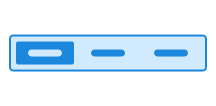
Toggle group groups related options. The component consists of a group of buttons that are connected, where only one button can be selected at a time.
Unable to parse html
const PreviewEn = () => {
  return (
    <ToggleGroup aria-label='Filter' defaultValue='inbox'>
      <ToggleGroup.Item value='inbox'>Inbox</ToggleGroup.Item>
      <ToggleGroup.Item value='drafts'>Drafts</ToggleGroup.Item>
      <ToggleGroup.Item value='archive'>Archive</ToggleGroup.Item>
      <ToggleGroup.Item value='sent'>Sent</ToggleGroup.Item>
    </ToggleGroup>
  );
};

render(<PreviewEn />)
Use toggle group when
- you need to switch between views, for example between a list and a graph
- content in a list or table needs to be filtered
Avoid using toggle group when
- there are so many options that they do not fit within the available width
- the options contain long text, making the group heavy and difficult to scan
- the options represent answers in a form - use radio instead
- the choice is an on/off setting - use switch instead
Example
Icons only
A toggle group without text should only be used when the icons are easy for users to understand. This may be suitable for expert users or internal services where the symbols are already familiar. Use tooltip to clarify the actions when using icons alone.
Unable to parse html
const OnlyIconsEn = () => {
  return (
    <ToggleGroup aria-label='Textalignment' defaultValue='option-1'>
      <Tooltip content='Left aligned'>
        <ToggleGroup.Item value='option-1'>
          <AlignLeftIcon aria-hidden />
        </ToggleGroup.Item>
      </Tooltip>
      <Tooltip content='Center aligned'>
        <ToggleGroup.Item value='option-2'>
          <AlignCenterIcon aria-hidden />
        </ToggleGroup.Item>
      </Tooltip>
      <Tooltip content='Right aligned'>
        <ToggleGroup.Item value='option-3'>
          <AlignRightIcon aria-hidden />
        </ToggleGroup.Item>
      </Tooltip>
    </ToggleGroup>
  );
};

render(<OnlyIconsEn />)
Secondary variant
Unable to parse html
const SecondaryEn = () => {
  return (
    <ToggleGroup aria-label='Filter' defaultValue='inbox' variant='secondary'>
      <ToggleGroup.Item value='inbox'>Inbox</ToggleGroup.Item>
      <ToggleGroup.Item value='drafts'>Drafts</ToggleGroup.Item>
      <ToggleGroup.Item value='archive'>Archive</ToggleGroup.Item>
      <ToggleGroup.Item value='sent'>Sent</ToggleGroup.Item>
    </ToggleGroup>
  );
};

render(<SecondaryEn />)
Guidelines
It is not always straightforward to decide when to use a toggle group instead of components such as tabs or radio. The choice depends on the context and how the rest of the interface is structured.As a general rule, toggle group should be used when the selection has a direct and visible effect in the interface — for example when the content on the page or a specific element is updated immediately based on the user’s choice.
A toggle group should have at least two options, but not so many that they no longer fit horizontally. Ensure there is enough space for both the content of each option and the number of options without causing line breaks. Make sure the entire component fits on screen, including on mobile, and that all options remain clearly visible to users.
Text
Include a label for the group that explains what the options refer to.
Write clear, consistent labels for each option, ensuring they follow the same linguistic pattern. Use tooltip to provide hints when needed, especially when using icons only.