Components
Alert
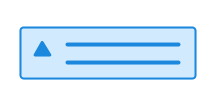
Alert provides users with information that is especially important for them to see and understand. The component is designed to capture users' attention. The text in the alert should be short and clear.
Unable to parse html
const PreviewEn = () => {
  return (
    <Alert role='alert'>A message that is important for the user to see</Alert>
  );
};

render(<PreviewEn />)
Use Alert when
- you have short and informative messaging that is important to highlight
- the information has a semantic meaning (error, success, info, warning)
- you need to inform about minor or technical errors
Avoid Alert when
- you need to notify the user about an error in a single form field, use the component’s own error message validation message instead, and error summary to summarise multiple errors
- you want to highlight content visually
For more comprehensive guidelines on how to use alerts in services, see the pattern for System notifications. There you will find examples and recommendations on when to use alert, and when other solutions may be more appropriate.
Examples
Alert can be used for four types of messages: information, success, warning and error.
Information
Use info when you want to provide the user with neutral and useful information.
Unable to parse html
const VariantInfoEn = () => (
  <Alert role='status' data-color='info'>
    <Heading
      level={2}
      data-size='xs'
      style={{
        marginBottom: 'var(--ds-size-2)',
      }}
    >
      Have you remembered to book a passport appointment?
    </Heading>
    <Paragraph>
      There are long queues for booking a passport these days, so it may be wise
      to book well in advance of your trip.
    </Paragraph>
  </Alert>
);

render(<VariantInfoEn />)
Success
Use success when you want to confirm that the user has completed a task, that the action was successful.
Unable to parse html
const VariantSuccessEn = () => (
  <Alert role='status' data-color='success'>
    <Heading
      level={2}
      data-size='xs'
      style={{
        marginBottom: 'var(--ds-size-2)',
      }}
    >
      Congratulations! You can now start your company
    </Heading>
    <Paragraph>
      It looks like the numbers add up, and that you have what it takes to start
      your company.
    </Paragraph>
  </Alert>
);

render(<VariantSuccessEn />)
Warning
Use warning when you want the user to take a specific action or to warn them about something important.
Unable to parse html
const VariantWarningEn = () => (
  <Alert role='status' data-color='warning'>
    <Heading
      level={2}
      data-size='xs'
      style={{
        marginBottom: 'var(--ds-size-2)',
      }}
    >
      We are experiencing technical issues
    </Heading>
    <Paragraph>
      This means you may be interrupted while filling in the form. We are
      working to fix the issues.
    </Paragraph>
  </Alert>
);

render(<VariantWarningEn />)
Error message
Use danger to inform about something that is critical or that prevents the user from moving forward.
Unable to parse html
const VariantDangerEn = () => (
  <Alert role='alert' data-color='danger'>
    <Heading
      level={2}
      data-size='xs'
      style={{
        marginBottom: 'var(--ds-size-2)',
      }}
    >
      An error has occurred
    </Heading>
    <Paragraph>
      We are unable to retrieve the information you are looking for right now.
      Please try again later. If we still cannot show the information you need,
      please contact customer service on telephone 85 44 32 66.
    </Paragraph>
  </Alert>
);

render(<VariantDangerEn />)
Closable
If the user should be able to close the alert, it should be clear what happens next. Instead of a general close icon, add one or more call to action buttons that both close the alert and provide the user's next step.
Unable to parse html
const ClosableEn = () => {
  const [isVisible, setIsVisible] = useState(true);

  return (
    isVisible && (
      <Alert role='alert' data-color='danger'>
        <Paragraph>
          Could not save the document due to an unstable internet connection.
        </Paragraph>
        <div
          style={{
            display: 'flex',
            gap: 'var(--ds-size-3)',
            marginTop: 'var(--ds-size-3)',
          }}
        >
          <Button data-variant='primary' onClick={() => setIsVisible(false)}>
            <ArrowsCirclepathIcon /> Try again
          </Button>
          <Button data-variant='tertiary' onClick={() => setIsVisible(false)}>
            <ExclamationmarkTriangleIcon /> Report error
          </Button>
        </div>
      </Alert>
    )
  );
};

render(<ClosableEn />)
With and without heading
If the message is longer than a sentence, it can be useful to use a heading to highlight the most important thing. This can be done using the Heading components. Remember to choose the correct heading level based on the space the alert has in the content structure of the page.
Unable to parse html
const WithHeadingEn = () => (
  <Alert role='status'>
    <Heading
      level={2}
      data-size='xs'
      style={{
        marginBottom: 'var(--ds-size-2)',
      }}
    >
      Have you remembered to book a passport appointment?
    </Heading>
    <Paragraph>
      There are long queues for booking a passport these days, so it may be wise
      to book well in advance if you need a passport for the summer.
    </Paragraph>
  </Alert>
);

render(<WithHeadingEn />)
If the title and description repeat the same thing, it is better to use a simple sentence without a heading.
Unable to parse html
const WithOnlyHeadingEn = () => (
  <Alert role='status' data-color='warning'>
    <Paragraph>You have 7 days left to complete the application.</Paragraph>
  </Alert>
);

render(<WithOnlyHeadingEn />)
With link
You can include a link in the alert if it is necessary for the user to complete their task. Remember that links take the user out of the service, so they should be used with caution, for example when opening forms or performing other important actions.
Unable to parse html
const MedLenkeEn = () => (
  <Alert role='status' data-color='warning'>
    <Heading
      level={2}
      data-size='xs'
      style={{
        marginBottom: 'var(--ds-size-2)',
      }}
    >
      The application deadline is in 3 days
    </Heading>
    <Paragraph>
      The deadline for applying for admission to education is 15 April.{' '}
      <Link href='#'>Apply now</Link>
    </Paragraph>
  </Alert>
);

render(<MedLenkeEn />)
Guidelines
Alert is used to display important messages that require attention. It can be used to inform the user about the status, changes, or problems in a solution.
Use alert with caution. Users can confuse alerts with advertising, and thus ignore them. If we use alerts too often, we can exacerbate this problem.
Make sure that alert has the same look and feel across all services and products. This component should be recognizable everywhere, so we should not adjust it.
Text
It is not always easy to understand the difference between the notifications, even though they have different icons and colours. Therefore, it is important that the text we write in the notification is clear and easy to understand.
If there is something users need to or can do to get through their task, the text should convey that. When the message is longer than a sentence, it may be a good idea to include a heading that highlights the most important points.
Avoid multiple alerts on the same page, as it can confuse the user and make it difficult to understand what is important.
Here is a list of the types of information that a notification should contain:
- Tell them what happened
- Example: "Couldn't connect to account."
- Tell them why it happened
- Example: "We were unable to connect to your account due to technical issues on our end."
- Reassure the user
- Example: "Your changes have been saved."
- Give them a way out of the problem
- Example: "If this problem occurs again, contact customer service."
- Help them fix the problem themselves
- Example: "Please try again."
For more guidance on how to write clear and effective alert text, see the language recommendations in the System notifications pattern.
Edit this page on github.com (opens in a new tab)