Components
Dialog
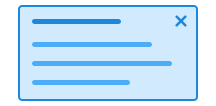
There are two types of dialogs: modal and non-modal. A modal dialog requires users to take action before they can continue using the page. A non-modal dialog allows users to continue using the page, even while the dialog is open.
Unable to parse html
const Preview = () => {
  return (
    <>
      <Button command='show-modal' commandfor='my-dialog-preview'>
        Open Dialog
      </Button>
      <Dialog id='my-dialog-preview'>
        <Heading style={{ marginBottom: 'var(--ds-size-2)' }}>
          Dialog header
        </Heading>
        <Paragraph style={{ marginBottom: 'var(--ds-size-2)' }}>
          Lorem ipsum dolor sit, amet consectetur adipisicing elit. Blanditiis
          doloremque obcaecati assumenda odio ducimus sunt et.
        </Paragraph>
      </Dialog>
    </>
  );
};

render(<Preview />)
Use a modal dialog when
- users need to confirm a critical action, such as deleting something that cannot be undone
- users must see a specific dialog and are required to respond to it
- you need to ensure that users notice important information
Avoid using a modal dialog when
- the content is extensive or complex
- the content is one of several steps in a process
- you need to notify users about something that does not require action. Use alert or a non-modal dialog instead
- you want to provide short, optional information, use popover
See also the system notifications pattern for more guidance on when a modal dialog should be used.
Many people refer to this component simply as a “modal”. In Designsystemet, we use dialog, which is based on the native HTML <dialog> element, and distinguish between modal and non-modal dialogs (nngroup.com) based on how they behave.
Examples
Modal dialog
An example of a modal dialog that requires users to make a decision before they can continue using the page.
Unable to parse html
const ModalDialogEn = () => (
  <>
    <Button command='show-modal' commandfor='my-dialog-modal-en'>
      Open modal dialog
    </Button>
    <Dialog id='my-dialog-modal-en'>
      <Dialog.Block>
        <Paragraph data-size='sm'>Confirm change</Paragraph>
        <Heading>Are you sure you want to change the application?</Heading>
      </Dialog.Block>
      <Dialog.Block>
        <Paragraph>
          Note: You should not change the application after the deadline has
          passed. If you change the application now, you will no longer be
          included in the upcoming admission round. Please contact the service
          centre on +00 00 00 00 if you need guidance.
        </Paragraph>
      </Dialog.Block>
      <Dialog.Block>
        <div
          style={{
            display: 'flex',
            gap: 'var(--ds-size-4)',
            marginTop: 'var(--ds-size-4)',
          }}
        >
          <Button
            variant='primary'
            data-color='danger'
            command='close'
            commandfor='my-dialog-modal-en'
          >
            Yes, change
          </Button>
          <Button
            variant='secondary'
            command='close'
            commandfor='my-dialog-modal-en'
          >
            Cancel
          </Button>
        </div>
      </Dialog.Block>
    </Dialog>
  </>
);

render(<ModalDialogEn />)
Non-modal dialog
Non-modal dialogs are useful when users should be able to continue working while the dialog remains open.
Note: Make sure that elements receiving focus are not hidden behind the dialog.
Unable to parse html
const NonModalDialogEn = () => (
  <>
    <Button command='--show-non-modal' commandfor='my-dialog-non-modal-en'>
      Open non-modal dialog
    </Button>
    <Dialog
      id='my-dialog-non-modal-en'
      modal={false}
      style={{
        zIndex: '10',
        top: 'calc(100vh - 290px)',
        left: 'calc(100vw - 385px)',
        margin: 0,
        maxWidth: '350px',
      }}
    >
      <Heading style={{ marginBottom: 'var(--ds-size-4)' }}>
        Let us know
      </Heading>
      <Label htmlFor='my-textarea'>How was your experience?</Label>
      <Textarea
        id='my-textarea'
        style={{
          marginBottom: 'var(--ds-size-6)',
        }}
      />
      <Button>Submit</Button>
    </Dialog>
  </>
);

render(<NonModalDialogEn />)
Dialog as a drawer
Using placement, dialog can behave like a so-called “drawer” from the position you specify.
Unable to parse html
const Drawer = () => {
  const [placement, setPlacement] =
    useState<DialogProps['placement']>('bottom');
  const [modal, setModal] = useState(true);

  return (
    <>
      <Checkbox
        label='Modal'
        checked={modal}
        style={{ marginBottom: 'var(--ds-size-4)' }}
        onChange={(e) => setModal(e.target.checked)}
      />
      <Fieldset
        onChange={(e: ChangeEvent<HTMLFieldSetElement>) => {
          const target = e.target as unknown as HTMLInputElement;
          setPlacement(target.value as DialogProps['placement']);
        }}
      >
        <div
          style={{
            display: 'flex',
            flexWrap: 'wrap',
            gap: 'var(--ds-size-5)',
            marginBottom: 'var(--ds-size-8)',
          }}
        >
          <Radio name='drawer' label='Center' value='center' />
          <Radio name='drawer' label='Top' value='top' />
          <Radio name='drawer' label='Bottom' value='bottom' />
          <Radio name='drawer' label='Left' value='left' />
          <Radio name='drawer' label='Right' value='right' />
        </div>
      </Fieldset>
      <Button
        command={modal ? 'show-modal' : '--show-non-modal'}
        commandfor='my-dialog-drawer'
      >
        Open Dialog with command
      </Button>
      <Dialog
        id='my-dialog-drawer'
        closedby='any'
        placement={placement}
        style={{ zIndex: '10' }}
      >
        <Dialog.Block>
          <Paragraph>
            This is a {modal ? 'modal' : 'non-modal'} Dialog with{' '}
            <code>placement="{placement}"</code>
          </Paragraph>
        </Dialog.Block>
      </Dialog>
    </>
  );
};

render(<Drawer />)
Guidelines
Limit the use of dialog as it breaks the flow and interrupts users. Do not interrupt users unless it is necessary. Interruptions disrupt the workflow and should only be used when the content is important enough or can prevent users from making mistakes. Users may not understand why the dialog appears, how to close it, or whether they need to take action. This is particularly challenging for users with concentration difficulties, low vision, or those using screen readers.
Closing a dialog
Always ensure that users have a visible and simple way to close a dialog. The most common approach is a close button (X) in the top right corner. It should remain visible even when the dialog contains a lot of content and the user needs to scroll. If this is not suitable, provide another way to close the dialog, such as a Cancel button.
Carefully consider whether the dialog can be closed by clicking outside it. For critical choices, users should close the dialog through an explicit action.
When users close the dialog without making an active choice, this should correspond to the least critical or least destructive option.
Text
The heading should clearly indicate that users need to take action. Using a question as the heading can be effective.
The content should be brief, while still providing the information users need to make a decision. Use buttons to give users a clear path forward.
Make it clear what will happen when users choose an option, especially if the action cannot be undone.
Edit this page on github.com (opens in a new tab)