Components
Toast
Designsystemet deliberately does not provide a toast component because it has known accessibility issues.
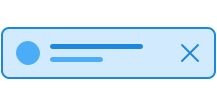
Accessibility issues with toast
Toast has known accessibility issues that make it difficult to support all users:
Time constraints
Toast messages disappear after a few seconds. Users must be able to extend the duration until they choose to close the message themselves. Users with cognitive disabilities or users of assistive technology often do not have time to read or act on the message. Users who are in the middle of something else may miss it entirely.
WCAG 2.2.1 Timing Adjustable (w3.org)
DOM order and context
Toast messages are usually placed far from the content they relate to. For assistive technology users, there is no logical connection between the action that triggered the message and the message itself. This creates confusion about what the message actually refers to.
WCAG 1.3.2 Meaningful Sequence (w3.org)
Keyboard operability
All interactive elements in a toast, including the option to close it, must be usable with a keyboard. Toast also does not steal focus, so keyboard users who are in the middle of something else will not automatically be made aware of the message.
Status messages
Implementing toast in a way that meets the requirements for status messages is challenging. It requires ARIA live regions with correct configuration, and incorrect implementation can cause the message to not be announced by screen readers, or to be announced too late and interrupt what the user is doing.
WCAG 4.1.3 Status Messages (w3.org)
Screen magnification
Users who magnify the screen only see part of the page at a time. Toast messages shown in a corner can end up outside the visible area and never be discovered.
No way to return to the message
When a toast message disappears, it is gone. There is no way for the user to find the information again later.
Use instead
What you should use depends on what kind of message it is. Here are some typical situations and recommended solutions:
- Confirmation after submission: Use an alert in the content or a receipt page.
- Failed action: Use an alert close to where the error occurred, or a dialog if the user must make an active choice to continue.
- File uploaded: Show the file directly in the list of uploaded files.
- Automatic saving: Show the save status close to the content being saved.
- Background tasks: Use a progress indicator or a status area that updates while the task is running.
See also system notifications for more guidance on how to inform users about different types of messages and notifications.