Patterns
Ask users for consent to store personal information
How to create a consent banner that is understandable, accessible, and gives users genuine choices.


Why a common pattern for consent banners?
Organizations design consent banners very differently in terms of language, design, placement, and the actual choices users are given. This makes it difficult for users to make informed choices.
At the same time, the legal frameworks are clear. Consent must meet the requirements for valid consent under the General Data Protection Regulation (GDPR) and the consent process must comply with the requirements of the Regulation for universal design of ICT-systems.
A common pattern provides clear guidance on how to design effective consent processes. It becomes easier for users to understand their choices when consent is handled consistently across services. It creates more predictable user experiences and reduces cognitive load. At the same time, it becomes easier for you to build services based on good practices for user experience, accessibility, and privacy. You must yourself assess which technologies you use and which legal basis applies.
The Norwegian Data Protection Authority and the Norwegian Communications Authority (Nkom) share supervisory responsibility for the rules on storage of and access to information on users' devices in the Electronic Communications Act § 3-15 (lovdata.no). The Norwegian Data Protection Authority supervises the requirements for consent and information. You will find guidance on this in the Norwegian Data Protection Authority's guide on cookies and other tracking technologies (datatilsynet.no). The Norwegian Communications Authority assesses, among other things, which technological solutions are covered by the provision and when exceptions can be used. You will find more information on the Norwegian Communications Authority's page on cookies (nkom.no). In developing this pattern, we have been in dialogue with both supervisory authorities and received guidance along the way.
Preparations
Before you can request consent, you must have an overview of what information you will collect and which technologies you use. This may be cookies, but also other methods of storing or reading data on the user's device.
You are legally required to provide users with information about the technologies you are requesting consent for and what they are used for. This enables users to make informed decisions and protect their privacy.
Understand what information you collect and why
Create an overview of the technologies your website uses, including first-party and third-party technologies. This may include cookies, analytics tools, and integrations. Map out what information you collect, why you collect it, and how you collect it. Consider the consequences for users if they do not give consent. It is recommended that you map this together in cross-functional teams. Remember to include the data protection officer.
You should assess which technologies are strictly necessary and which are optional.
- You must request consent for optional technologies.
- If the technologies are strictly necessary, you do not need consent. We still recommend that you inform users about which technologies are used and why.
The use of cookies and similar technologies often involves processing of personal data. If the information can be linked to an individual, you must also comply with the privacy regulations.
Storing consent
You do not need to obtain separate consent to store the consent response itself. This is strictly necessary, since you are required to request consent and it is necessary to store the response in order to fulfill this requirement.
As a general rule, you should store as little as possible:
- Store the minimum amount of data, for the shortest time possible. For example: data from an A/B test does not need to be stored after the test is completed and an approach has been chosen.
- Do not store default values. If Norwegian is the default language of the website, you do not need to store this on users' devices — only store information when users deviate from the default.
Sharing consent across services
If you are to share consent across the organization's services, users should experience the relevant pages as part of the same website. The consent banner must also contain information about everything the user is giving permission to read or store in all services that share the banner.
Design and experience
If one question is enough — one purpose
Collect consent in a single simple question when possible. This fits when the technologies are used for one purpose and users do not need to decide on different purposes separately. Then two buttons are enough: one to accept and one to reject. This is the simplest and most understandable approach for users.
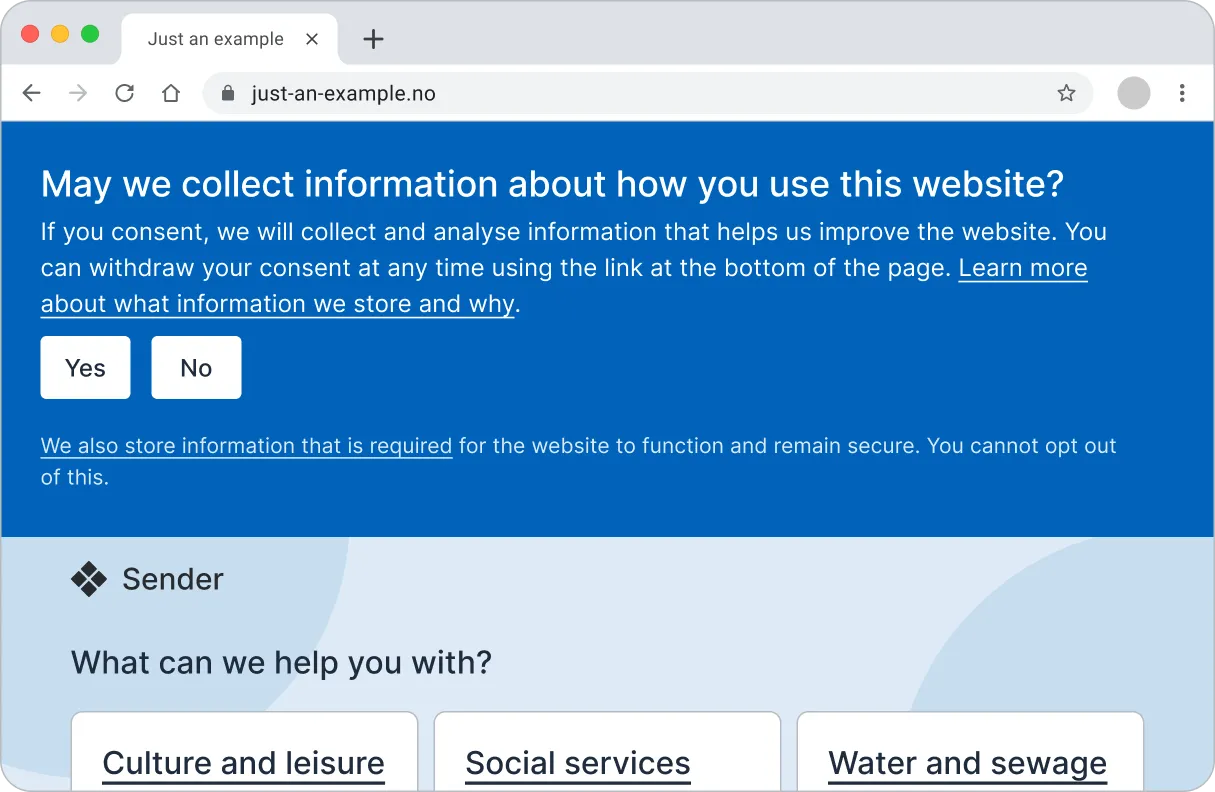
If you need to give users multiple choices
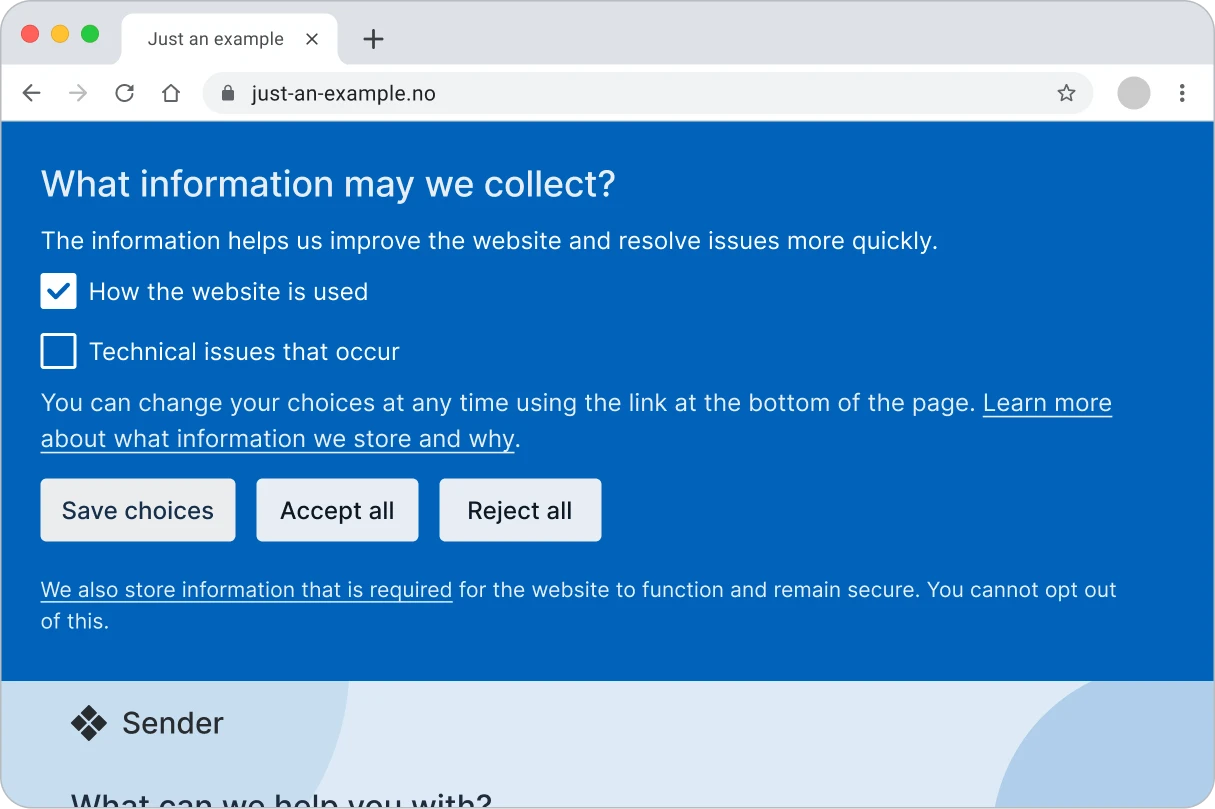
If the technologies are used for different purposes, users must be able to choose which purposes they consent to. Then you must give users the ability to accept some and reject others.
Use checkboxes, not toggles. A toggle (switch) signals that the change takes effect immediately. It does not fit here, since the choice only applies after users confirm. Checkboxes tell users that this is something they set themselves and then saves. None of the checkboxes should be pre-checked.
In addition to a button to save the choices users have made, there should be buttons for 'Accept all' and 'Reject all'. If there is an accept button, there must always be a reject button. It must be just as easy to reject as to accept — this is a requirement for consent to be valid.
If there are only strictly necessary technologies
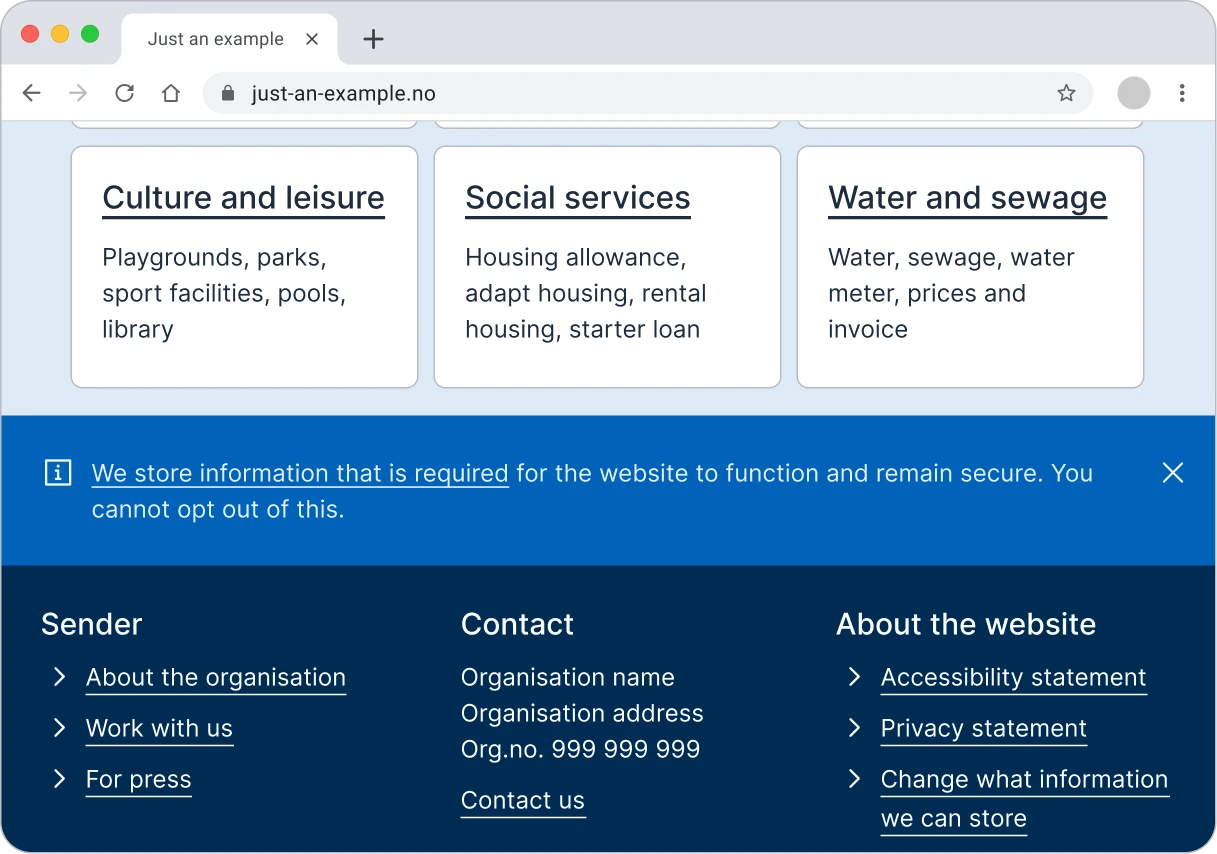
If the website only uses strictly necessary technologies, you do not need to show a consent banner. However, you should still inform users that these technologies are being used.
If you can wait before requesting consent
Wait before requesting consent until it is relevant. For example, when displaying an embedded video from third parties. These services can set their own cookies when the video loads. Instead of asking for consent in the general consent banner, you can show a placeholder where the video will be — and only ask for consent when users actually choose to watch the video. This ensures that consent comes in the right context and is relevant and meaningful when users give it.
![An article page with the heading 'Understanding visual impairment' and text explaining that between 7 and 10 percent of the population lives with a visual impairment. In the middle of the page is a blue video placeholder with a play icon, the heading 'To watch this video you must give consent', the description 'The video is delivered by [video provider], an external service. When you play the video, the provider may collect information about [...] and [...].' and the button 'Accept and show video'.](/img/patterns/consent-banner/consent-banner-video-en.webp)
When you use third-party services, you are still responsible for obtaining valid consent. Users must understand what they are agreeing to. Make sure you understand what information the provider collects and what settings or agreements apply. Several providers offer privacy settings that limit tracking and reduce the number of cookies set. An alternative is to link to the video instead of embedding it. In that case, inform users about which external service the link goes to.
Placement and design
Display the consent banner inline at the top of the page, as shown in the the examples above. This ensures that it does not obscures other content or force users to make a choice. If users navigate further without making a choice, the banner should remain visible on to the other pages. No optional technologies are activated before users have actively given consent.
If the page has critical information that must be visible at the top, such as an emergency number, you must assess where is best to place the consent banner yourself.
Avoid dialog solutions
Avoid modal dialog if you can, because it forces users to make a choice before they have seen the page content. Even if it is possible to add a close button (×), it can be difficult for users to understand the difference between closing the dialog and rejecting.
Non-modal dialog should be avoided because it obscures other interactive content on the page. This fails WCAG 2.4.11 Focus Not Obscured (Minimum). The success criterion was introduced in WCAG 2.2 and is not yet part of the accessibility regulation in Norway, but still represents good practice for accessibility. See also 2.4.7 Focus Visible (W3), which is part of the current accessibility requirements in Norway.
Equally presented choices
For consent to be voluntary and valid, the alternatives must be equally presented. Use the same colour, size and visual prominence for the Accept and Reject buttons — neither should stand out as the 'right' choice.
Avoid visual hints that lead users toward one choice in particular, for example by making the 'Accept' button larger, more colorful, or more prominent than the 'Reject' button.
Make sure users can change their consent later
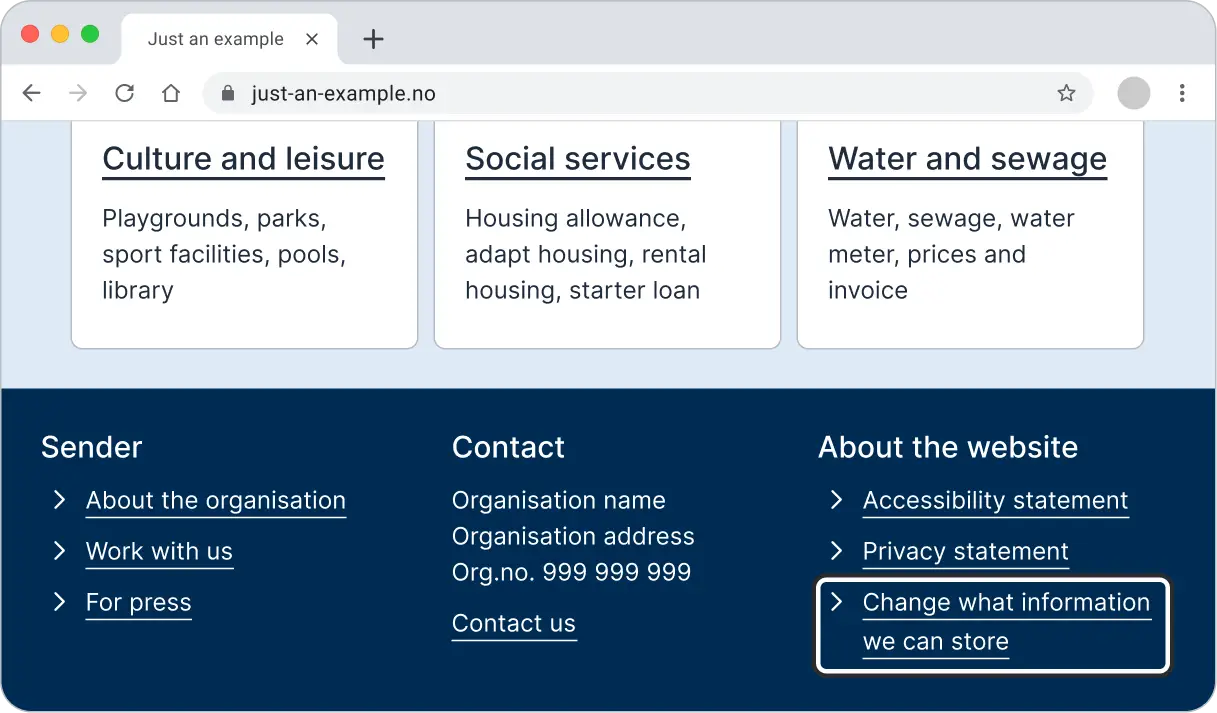
Users must be able to change or withdraw their consent at any time. Therefore, place a permanent link in the footer of the page that opens the consent banner again. The link should be visible on all pages and have clear text, for example 'Change what information we can store'.
Language
Use everyday language and keep sentences short and precise.
Avoid legal and technical terms where it is not necessary. Focus on the purpose of the processing, not the technology used.
The term 'cookies' can be confusing for many users, and it can be imprecise if the website uses a mix of technologies. Write instead 'technologies for collecting information about how the service is used', or similar. It communicates more clearly what it means.
Ask one clear and specific question
The consent banner should ask one clear and specific question: What are you asking consent for? The description below the question can explain more about why you are asking this and what it means if users answer yes.
Don't
Do
Button and choice text
Button texts must be clear enough for users to immediately understand the choice they are making and what they are consenting to.
Don't
Do
Strictly necessary technologies are exempt from consent
Strictly necessary technologies do not require consent and should not be part of the question users are asked to decide on. Avoid button texts such as 'Accept only necessary cookies', as they can create confusion and make the choice more complicated.
Don't
Do
Don't
Do
Content in the consent banner
For consent to be valid, users must be presented with understandable information that makes it possible to make an informed decision. Clearly explain what users are consenting to, what the consequences of the choice are, and who the information may be shared with.
Avoid too much text in the consent banner itself. Provide complete information on a separate privacy and cookie page. Make sure the consent banner has a clearly identifiable link to this, in addition to a link in the footer of the page.
Code
HTML semantics
Code the consent banner as a <section> — a seperate section of the page that can easily be navigated to or skipped. Do not use role="banner" or role="alertdialog" on the section.
Unable to parse html
const ConsentBanner = () => {
  return (
    <>
      <section aria-labelledby='consent-banner-title'>
        <Heading
          id='consent-banner-title'
          data-size='md'
          style={{ marginBottom: 'var(--ds-size-2)' }}
        >
          Can we collect information about how you use this website?
        </Heading>
        <Paragraph>
          If you consent, we will collect and analyse information that helps us
          improve the website. You can withdraw your consent at any time using
          the link at the bottom of the page.{' '}
          <Link href='#more-about-what-we-collect' style={{ color: 'inherit' }}>
            Learn more about what information we collect and why
          </Link>
          .
        </Paragraph>
        <form
          method='post'
          action='/api/consent'
          style={{
            display: 'flex',
            gap: 'var(--ds-size-4)',
            marginTop: 'var(--ds-size-5)',
          }}
        >
          <Button name='action' type='submit'>
            Yes
          </Button>
          <Button name='action' type='submit'>
            No
          </Button>
        </form>
        <Paragraph
          data-size='sm'
          style={{
            marginTop: 'var(--ds-size-8)',
          }}
        >
          <Link href='#necessary-information' style={{ color: 'inherit' }}>
            We also collect information that is required
          </Link>{' '}
          for the website to function properly and securely. This information
          cannot be opted out of.
        </Paragraph>
      </section>
      <SkipLink href='#main'>Skip to main content</SkipLink>
    </>
  );
};

render(<ConsentBanner />)
Unable to parse html
const ConsentBannerCheckboxes = () => {
  return (
    <>
      <section aria-labelledby='consent-banner-multiple-choice-title'>
        <form method='post' action='/api/consent'>
          <Fieldset>
            <Fieldset.Legend>
              <Heading
                id='consent-banner-multiple-choice-title'
                data-size='md'
                style={{ marginBottom: 'var(--ds-size-2)' }}
              >
                What information may we collect?
              </Heading>
            </Fieldset.Legend>
            <Fieldset.Description>
              The information helps us improve the website and resolve issues
              more quickly.
            </Fieldset.Description>
            <Checkbox
              label='How the website is used'
              name='consent'
              value='usage'
            />
            <Checkbox
              label='Technical issues that occur'
              name='consent'
              value='technical-errors'
            />
          </Fieldset>
          <Paragraph
            style={{
              marginTop: 'var(--ds-size-5)',
            }}
          >
            You can change your choices at any time using the link at the bottom
            of the page.{' '}
            <Link
              href='#more-about-what-we-collect'
              style={{ color: 'inherit' }}
            >
              Learn more about what information we collect and why
            </Link>
            .
          </Paragraph>
          <div
            style={{
              display: 'flex',
              flexWrap: 'wrap',
              gap: 'var(--ds-size-4)',
              marginTop: 'var(--ds-size-5)',
            }}
          >
            <Button name='action' type='submit' value='save'>
              Save choices
            </Button>
            <Button name='action' type='submit' value='approve-all'>
              Accept all
            </Button>
            <Button name='action' type='submit' value='decline-all'>
              Reject all
            </Button>
          </div>
        </form>
        <Paragraph
          data-size='sm'
          style={{
            marginTop: 'var(--ds-size-8)',
          }}
        >
          <Link href='#necessary-information' style={{ color: 'inherit' }}>
            We also collect information that is required
          </Link>{' '}
          for the website to function properly and securely. This information
          cannot be opted out of.
        </Paragraph>
      </section>
      <SkipLink href='#main'>Skip to main content</SkipLink>
    </>
  );
};

render(<ConsentBannerCheckboxes />)
When the consent banner has multiple choices that belong together, we use <fieldset> and <legend> to group the choices. Place the heading itself inside <legend>, so that it serves as both a visible title and an accessible name for the group. This avoids screen readers reading the same question twice. See also GOV.UK on labels, legends and headings.
Buttons and links
Functions to accept or reject should be coded as buttons (<button>), since they perform actions. Links to the privacy policy or more information about cookies should be coded based on what happens when users activate them:
- Link (
<a>) if they lead to a new page. - Button (
<button>) if they open a modal or similar content on the same page.
Landmarks and accessible names
For screen readers to detect the banner as a landmark, the section must have an accessible name. Use aria-labelledby linked to the banner's heading instead of aria-label, to avoid the text being read aloud twice:
Screen readers
Make sure all choices and feedback work with screen readers. Do not use role="alert" or similar, unless it is particularly important for users to be aware of the banner or changes to it in order to use the page.
Focus order and keyboard navigation
The consent banner should follow the usual focus order in the DOM. Let users navigate to the banner themselves, instead of moving focus there automatically.
- The banner should be early in the DOM, so it is one of the first things users encounter.
- The banner should be placed before the 'skip to main content' link. This makes the banner easier to discover for keyboard users, while still allowing them to skip ahead to the main content after the banner.
- Make sure focus is not trapped inside the banner. The page must function without users interacting with the consent banner.
Sources and related information
- Consent to use of cookies and other tracking technologies at the Norwegian Data Protection Authority
- Cookies at the Norwegian Communications Authority
- The Electronic Communications Act § 3-15 on use of cookies at Lovdata
- Glossary at the Norwegian Data Protection Authority
- WCAG 2.4.7 Visible focus at the Norwegian Authority for Universel Design of ICT
- WCAG 2.4.11 Focus Not Obscured (Minimum) at W3C
- Cookie banner in the GOV.UK Design System
- Cookies page pattern in the GOV.UK Design System
- Working with cookies and similar technologies in the GOV.UK Service Manual
- Evaluating browser-based cookie setting options at GOV.UK
