Patterns
Required and optional form fields
To help users understand which fields must be completed, required fields must be clearly and consistently labelled.


There are several ways to mark required fields that meet the requirements for labelling (uutilsynet.no). Different contexts may require different approaches, but by keeping labelling as consistent as possible across our services, it becomes easier for users to understand and recognise the pattern.
A general guideline is to avoid asking for information we do not need and, as a result, to avoid optional fields where possible. Also make sure there are not too many questions on the same page. Content grouped on the same page should share a common theme or include questions that are clearly related.
Below we describe two common scenarios for labelling form fields.
1. When you only have required fields
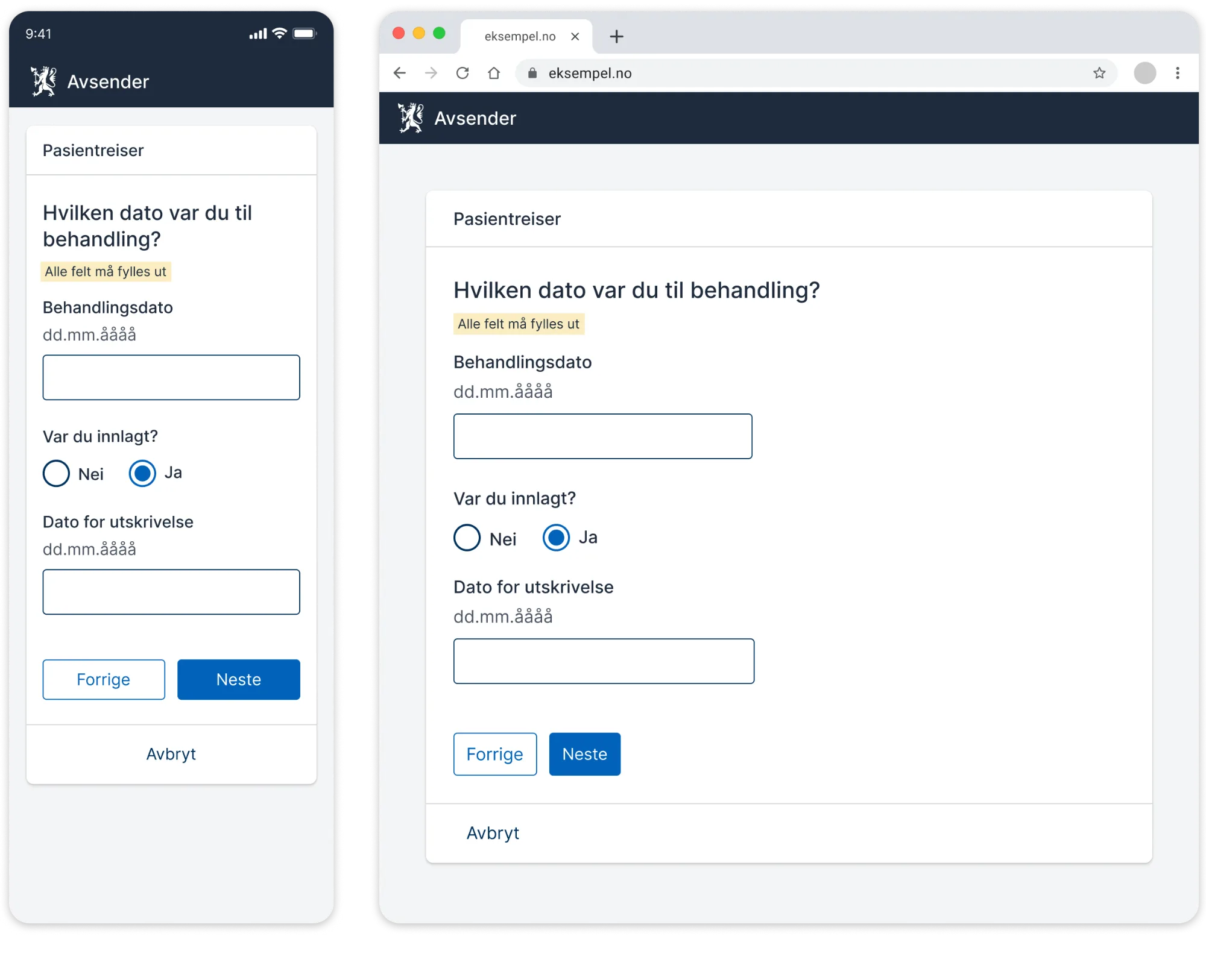
If all fields on a page must be completed, you can clearly inform users at the top that all fields are required. In this case, there is no need to label each individual field. If there is only one field, this can be communicated through the question or supporting text.
For example, you can use a yellow tag as shown in the example below, or make this clear in the introductory text.
2. When you have a combination of required and optional fields
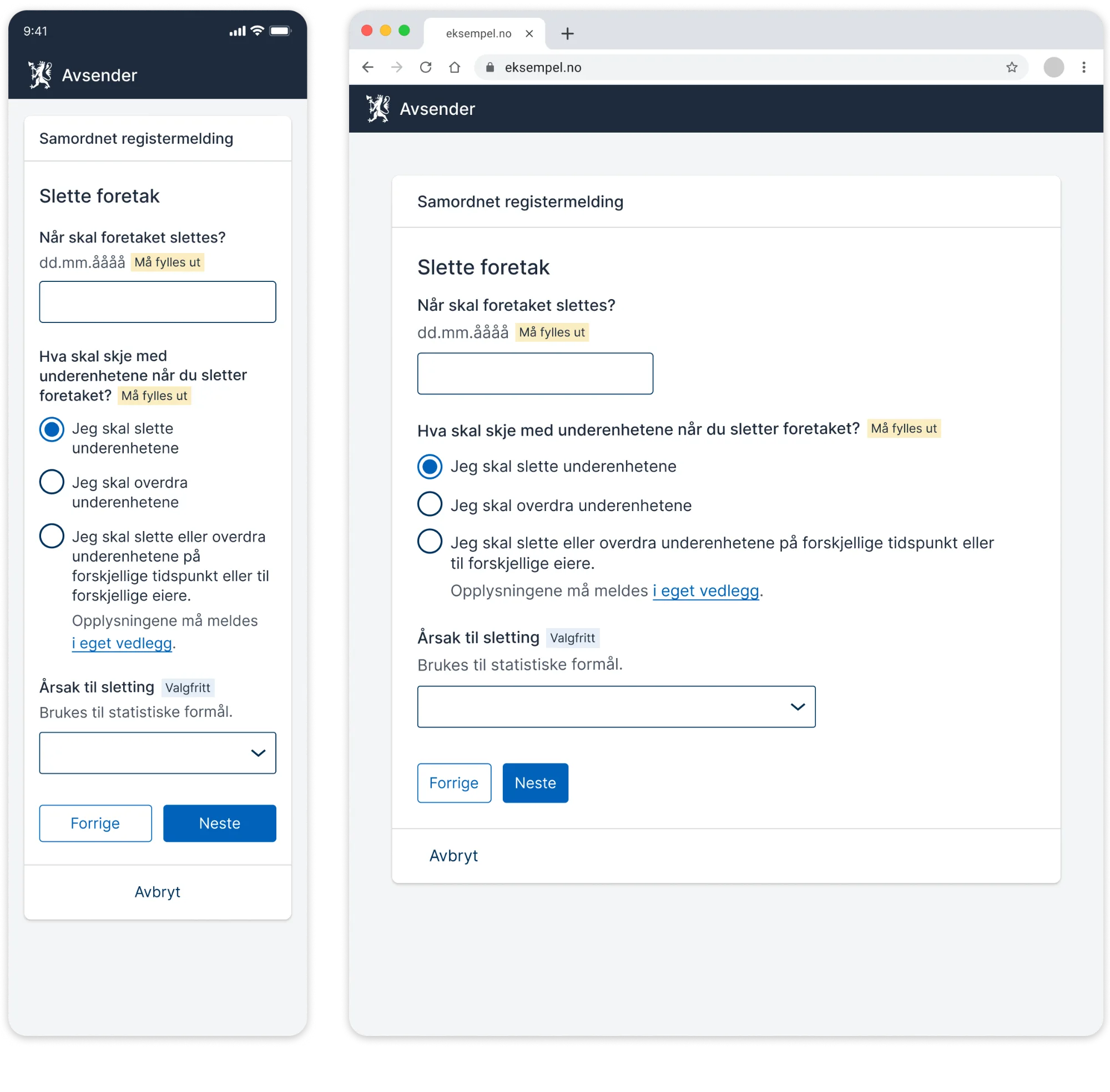
As a general rule, we should only ask users for information we absolutely need and avoid optional fields. However, there are situations where optional fields cannot be avoided. If you must include optional fields alongside required ones, all fields should be labelled individually. In this case, there is no need to provide additional information at the top of the page.
- Clearly label each field as “Required” or “Optional” after the question or field label.
- For example, use a yellow tag for “Required” and a blue tag for “Optional”.
- Do not use an asterisk to indicate required fields.
Sources and relevant information:
- The Norwegian Accessibility Authority (UU-tilsynet)
- Gov UK – Question pages
- NN Group – Marking Required Fields in Forms
