Migrating to the simplified color structure
Learn how to migrate your Designsystemet Figma library to the new color structure.

Why are we making this change?
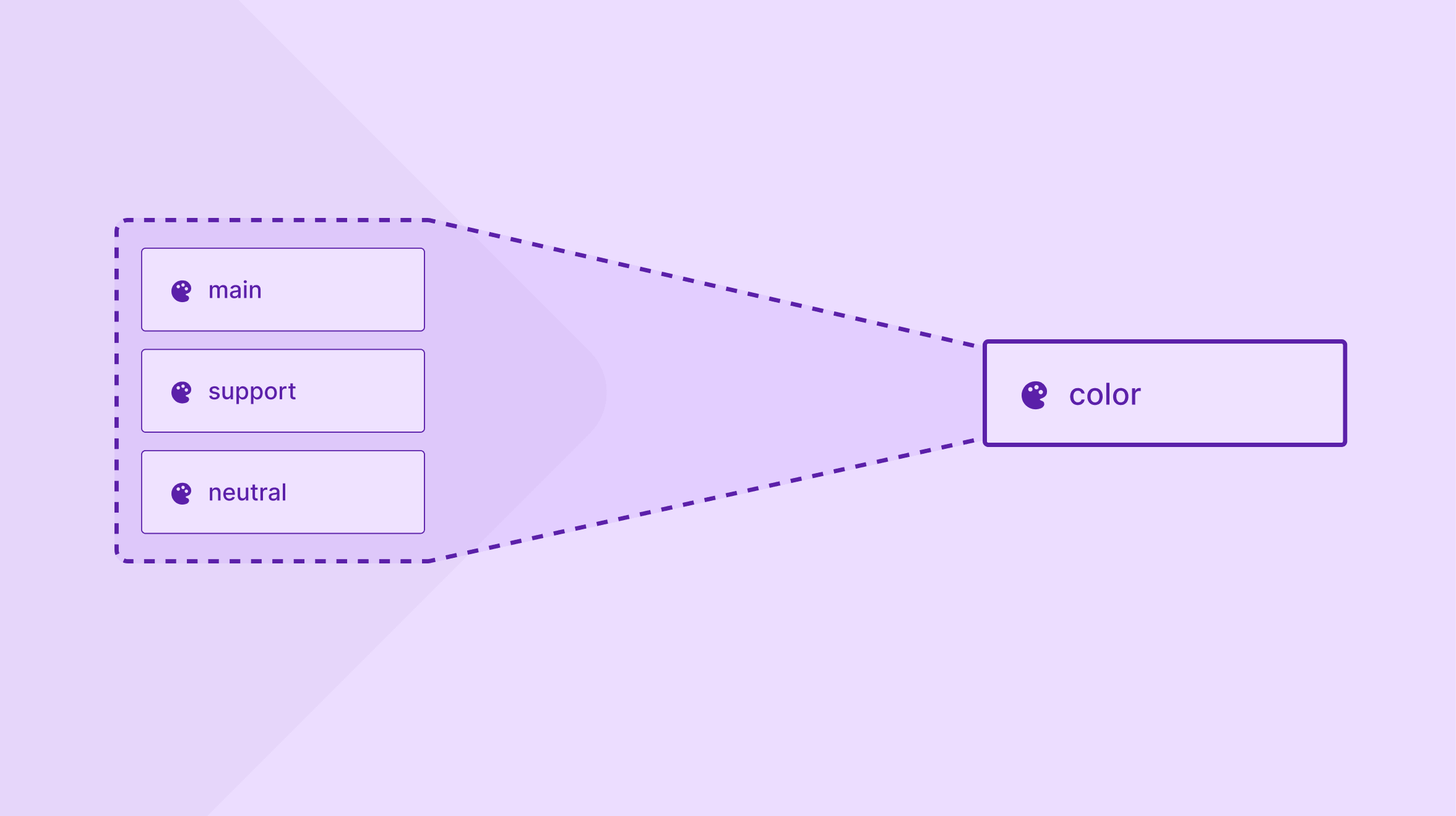
Today, colors in Figma are split across two separate collections, Main color and Support color, and components are available in the main, support, and neutral variants.
This structure makes design libraries more complex than necessary. It results in more component variants to maintain and makes it harder for designers using the library to choose and update colors.
With the new structure, all colors are brought together into a single Color collection. Components no longer need separate main, support, and neutral variants. Instead, users select the desired color directly through Appearance using color mode, just as it already works in code.
The result is a simpler library with fewer variants to maintain and a more intuitive way for designers to work with colors.
This change is possible because Figma no longer has the previous limitation on the number of colors in a collection. That limitation was the reason the colors were originally split across multiple collections.
Before you migrate your Figma library
This guide is intended for anyone maintaining a Figma library based on Designsystemet.
Before you start in Figma, make sure your designsystem.config.json and design-tokens have been updated to the new color structure. You may need help from a developer with this step.
If you run the CLI using designsystemet tokens create --clean, both the colors and the configuration are migrated automatically. You can also do this manually by moving the colors from main and support to color in the configuration file.
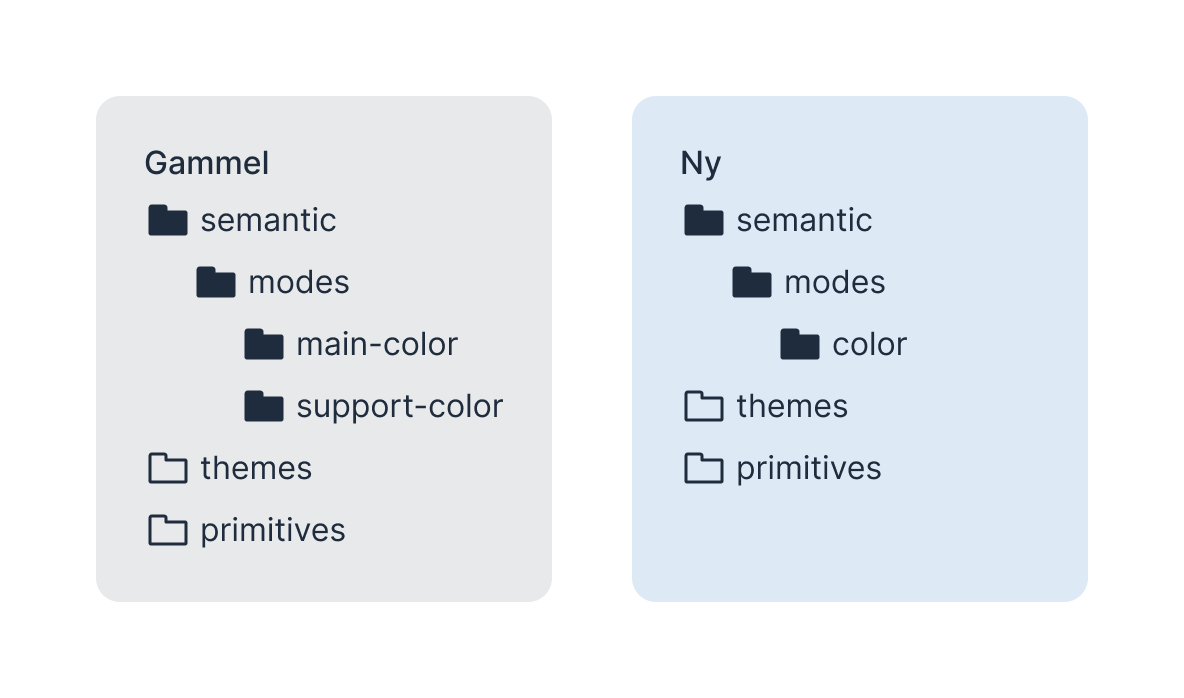
To verify that your design tokens have been updated, check the semantic/modes folder:
- if it contains
main colorandsupport color, you're still using the previous structure - if it only contains
color, you're using the new structure
What changes in Figma
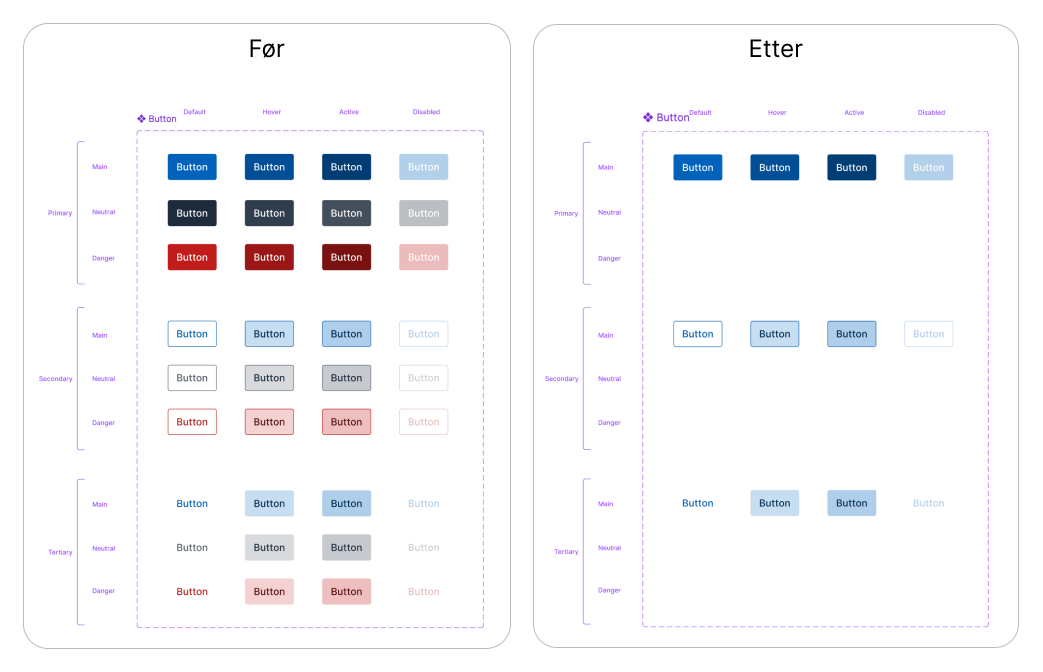
Main colorandSupport colorare merged into a single collection:Color- All variants except
mainare removed - Component instances and examples are updated accordingly
Plugin or manual migration
We recommend using our migration plugin when following this guide: Designsystemet migration helper. The migration can also be done manually, but it can be a significant amount of work, especially when cleaning up old component variants and instances.
Requirements – naming expected by the plugin
The plugin is designed to be dynamic, meaning it can also migrate components you've created yourself. However, it relies on a few specific names to work correctly. If you've renamed any of these, the plugin may fail or produce incorrect results.
-
The color variant property must be named
colororcolor mode. If it has been renamed, the plugin won't remove the old variants. -
Alert/ValidationMessage: These variants should remain unchanged. The plugin ignores them as long as the components keep their original names. If they've been renamed, you'll need to check them manually. Otherwise, the variants may be removed.
What happens to files that use the library?
This refers to Figma files that use components from the library as instances, not the library file itself.
Files that use the library won't be affected by the migration.
Instances using the former main variant are automatically reconnected to the new variants. Instances using support or neutral are not updated automatically by Figma.
Later in this guide, we'll explain how to update those instances using the migration plugin.
Step 1 – Create a version history snapshot
Create a snapshot so you can restore the file if anything goes wrong. If you prefer working in a branch, you can do that instead.
Do this:
- Open Version history in Figma.
- Create a new snapshot.
- Give the snapshot a descriptive name, for example "before migration".
Step 2 – Update the variable structure
Update the variable structure before exporting tokens from Token Studio. This ensures the variables are exported to the correct structure.
Do this:
- Run Designsystemet migration helper.
- Click Update library.
- The plugin checks whether the variable structure is correct.
- If prompted, click Prepare variables.
Update manually
- Find the
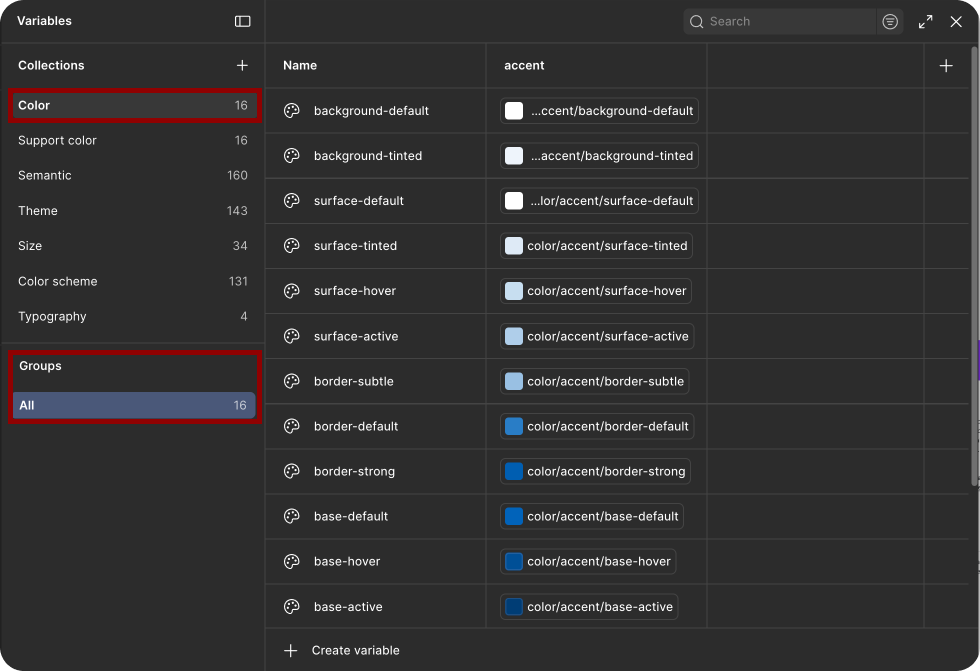
Main colorcollection and rename it toColor. - Under Groups in the lower-left corner, locate
All/color/main. Right-clickcolorand select Ungroup.
Step 3 – Sync the updated tokens with Token Studio
Before exporting tokens to Figma, make sure the token structure in GitHub has been updated to the new color structure. Verify that semantic/modes only contains color, and no longer contains main color or support color.
Do this:
- Push the updated tokens to GitHub if you haven't already.
- Open Token Studio and pull the latest tokens from your repository.
- Export the tokens to Figma.
If you haven't exported tokens with Token Studio before, follow the guide to creating your own theme. Start at step 7. The earlier steps cover setting up a new theme and aren't needed for this migration.
Verify that:
- All colors are in the
Colorcollection, including the severity colorsinfo,warning,danger, andsuccess.
Step 4 – Delete the Support color collection
Clean up after the export. Token Studio doesn't remove the Support color collection automatically, so you must delete it manually.
Do this:
- Open the Variables panel in Figma.
- Find the
Support colorcollection. - Delete the
Support colorcollection.
Verify that:
- The only variable collections are
Color,Semantic,Theme,Size,Color scheme, andTypography.
Step 5 – Run the migration plugin
Most components in the library are available in three color variants: main, support, and neutral.
The support variant is no longer used, and the neutral variant is no longer needed because components are now controlled using color mode.
The plugin removes the old variants and updates all instances in the library file in a single operation.
What the Designsystemet migration helper does
- Removes the
supportandneutralvariants from components. - Updates
neutralinstances todefaultand setscolor mode = neutral. - Updates
supportinstances todefault, allowing you to choose whichcolor modethey should use. - Replaces instances using old variants with the new variant and applies the correct
color mode, including instances nested inside other instances. - Reconnects
Support colorvariables applied directly to frames, text, and other layers (not only component instances) toColor.
Do this:
- Open Designsystemet migration helper.
- Click Update library.
- Choose which color should replace
support. This selection is required. - Click Run migration.
Note: The plugin only shows Run migration when the file is ready. If something is missing, the status card explains what needs attention:
- the variables haven't been renamed yet → click Rename variables in the plugin (Step 2), or
- the
Colorcollection is missing theinfo,warning,danger, orsuccesscolor modes → export the updated tokens from Token Studio and reopen the plugin (Step 3).
After the migration: You'll see a summary showing how many variants were removed and how many instances were updated. Most changes are handled automatically. If anything couldn't be updated, it will be listed in the results:
- component sets that already contained errors in Figma (for example variant conflicts). Fix the conflict and run the migration again.
- individual variants that couldn't be updated.
Click a row to jump directly to the component in Figma and fix it manually.
Update manually
Migrating manually is a significant amount of work. You'll need to review components, nested components, and example instances throughout the library file.
Remove all support and neutral variants, then update instances that use the old variants. neutral variants should be changed to default with color mode = neutral. support variants should be changed to default using the appropriate color mode.
The number of variants to remove depends on your library. See the full list of variants removed in our standard library.
Step 6 – Review and publish the library
Your library should now be fully migrated.
Review the components and verify that the variables have the correct scope and CSS syntax before publishing the library.
Do this:
- Review the components and verify that the migration looks correct.
- Run the Designsystemet – Code syntax & scoping plugin on the variables in the file.
- Update the scope and CSS syntax if the plugin finds anything that needs to be fixed.
- Publish the library.
If your library is used by many designers, it's a good idea to let them know about the change and explain what will happen when they update.
You can read more about variable scope and CSS syntax in Figma.
Update files that use the library
Once you've published the library, everyone using it can update to the new version. Figma automatically reconnects instances using the former main variant. As long as you haven't changed the order or names of your colors, these instances will look the same as before.
Instances using support or neutral are not updated automatically by Figma. They will continue to work, but if you'd like to clean them up, you can use the Update sketches flow in the migration plugin.
We recommend that users create a version history snapshot before updating the library or running the plugin. In our testing, we haven't seen any visual changes in files using the library, but a snapshot makes it easy to restore the file if anything unexpected happens.
The plugin replaces old instances with the new ones and applies the correct color mode. It can also reconnect Support color variables applied directly to frames, text, and other layers to Color.
Do this:
- Select the Scope to limit the migration to the current selection, the current page, or the entire file.
- For
supportinstances without a dedicated mode, choose a replacement color from the Replace 'support' with dropdown.
Known issues
After migration, several examples on the Table page lose their content. We haven't been able to reproduce this in files using a published library, but we still recommend paying extra attention to tables after updating your files.
On the Popover page, the Popover definition example is broken after running Designsystemet migration helper. This must be fixed manually.

Contributors